


DISLauncher: Automating DIS Workflow for BMW Diagnostics, Coding and Programming BMW

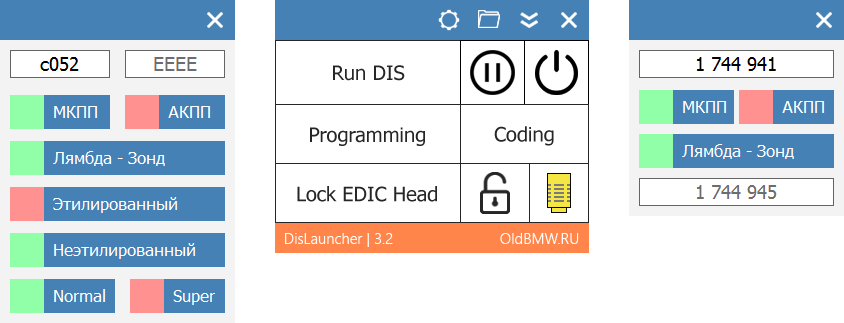
DISLauncher — is a powerful software suite designed to simplify the workflow of BMW diagnostics, coding, programming, and specifically, the interaction with the DIS software itself. The program automates a multitude of tedious and time-consuming actions, adds new functions to the DIS interface, and implements hotkey support.
Requirements:
- X Windows System — X-Win32 2012
- Virtual Machine — VMware Workstation 6.0 or newer
- Screen Resolution — 1024x768
- Color Depth — 32-bit
- Diagnostic Interface — EDIC/ADS/OBD
- Connection to Interface — Wi-Fi/LAN/COM/USB
The program's interface is fully optimized for use with a touch screen.
DISLauncher can only be used with the Windows operating system and DIS installed on a virtual machine. The Group Tester One tablet and IBM T30 laptop with a native DIS installation are not supported.
DISLauncher interacts directly with VMware Workstation, bypassing its interface, and completely eliminates the need for manual interaction with the DIS virtual machine.
Capabilities of the New DIS Graphical Interface
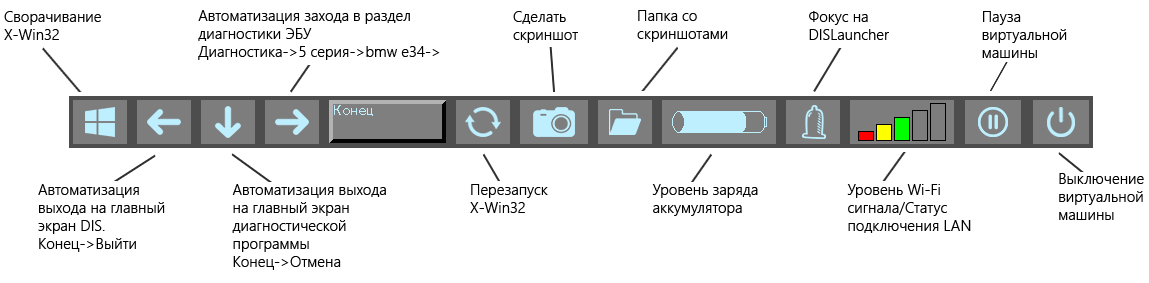
The new graphical shell is not part of the internal DIS interface. It overlays the X-Win32 window, hiding the standard DIS interface buttons and replacing them with new functions. For convenience, all lengthy operations are accompanied by a loading animation.

Pressing this button minimizes the X-Win32 window to access the Windows desktop. The keyboard hotkey [Esc] allows for instant minimizing and restoring of the X-Win32 window.

Pressing this button automates the process of returning to the DIS main menu from diagnostic applications. It emulates pressing the "End" —> "Exit" buttons and entering the identification number. Keyboard hotkey: [Left Arrow].

Pressing this button automates the process of exiting to the diagnostic program selection page. It emulates pressing the "End" —> "Cancel" buttons and entering the identification number. Keyboard hotkey: [Down Arrow].

Pressing this button automates the process of navigating to the ECU diagnostic program selection page. It emulates pressing the "Diagnosis" —> "5 Series" —> "bmw e34" —> "Next" buttons. Keyboard hotkey: [Right Arrow].

Pressing this button allows you to restart X-Win32, for example, in case the DIS interface freezes and becomes unresponsive to the cursor. Keyboard hotkey: [F5].

Pressing this button creates and saves a screenshot of the DIS window. A folder named with today's date is automatically created, and the screenshot file is named with the time it was taken. The save path is configurable in the settings file. Keyboard hotkey: [Print Screen].

Pressing this button opens the screenshots folder. The folder path is configurable in the settings file.

This window displays the battery charge level of the computer running DISLauncher, with a gradation from 0 — 100%. If the charge level drops below 21%, a warning indicator will start blinking.

Pressing this button brings focus back to DISLauncher, providing instant access to the program while DIS is running.
This window is responsible for displaying the status of the network connection between the diagnostic interface and DIS.
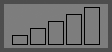
The computer is not connected to the EDIC diagnostic head via Wi-Fi or network cable. Or an ADS/OBD interface is being used.
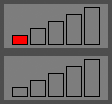
A Wi-Fi connection between the EDIC and the computer has been detected, but DIS has not yet established communication with the diagnostic interface.
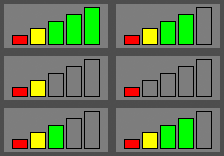
DIS has established a connection with the EDIC head via Wi-Fi. You can now begin diagnostics and coding in DIS. The Wi-Fi signal level is displayed with gradations of 20 — 40 — 60 — 80 — 100%.
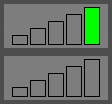
A LAN connection between the EDIC and the computer has been detected, but DIS has not yet established communication with the diagnostic interface.
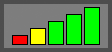
DIS has established a connection with the EDIC head via network cable. You can now begin diagnostics, coding, and programming in DIS.
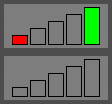
DISLauncher has detected a simultaneous connection of the EDIC interface to the computer via both Wi-Fi and LAN. This is an exceptional situation; operation in DIS is impossible. The diagnostic interface must be connected using only one communication method.

Pressing this button suspends the DIS virtual machine, closes VMware Workstation and X-Win32. This function is analogous to the [Pause] button in the main DISLauncher window.

Pressing this button shuts down the DIS virtual machine, closes VMware Workstation and X-Win32. This function is analogous to the [Shutdown] button in the main DISLauncher window.
Capabilities of the Main Window
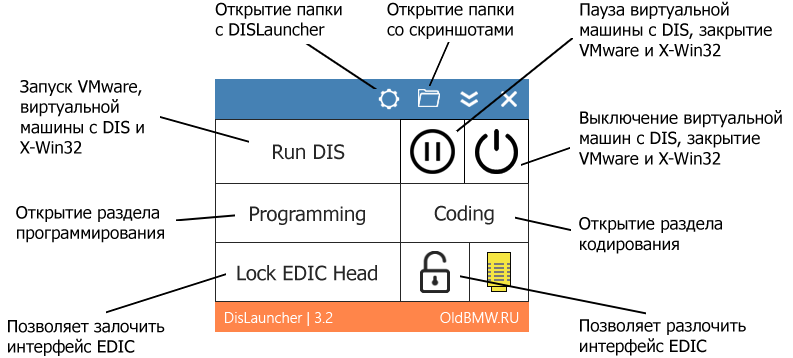
Start — Executes a Vmrun command to power on the DIS virtual machine. VMware Workstation starts automatically, DIS begins to boot, and X-Win32 launches. Background startup is possible; DIS runs, but the VMware Workstation interface is not displayed in Windows and doesn't get in the way.
If you add DISLauncher to Windows startup, DIS will begin loading automatically immediately after Windows boots. Configured in the settings file.
If you measure and specify in `DISconfig.txt` the time in seconds, from the moment you press the Start button in DISLauncher until the DIS start window appears on your computer, the loading animation will display the remaining time until DIS finishes loading as a percentage. DIS always takes a long time to load, and it's very convenient to know how much longer you have to wait. The configuration file allows you to set boot time from a powered-off state and from a suspended state. DISLauncher remembers how you closed the virtual machine — via shutdown or pause — and accordingly, during the next startup, it will use either the boot time from off or from pause for the animation.
Pause — Executes a Vmrun command to suspend the DIS virtual machine. Closes VMware Workstation and X-Win32. Only the Windows desktop and the DISLauncher window remain.
Shutdown — Executes a Vmrun command to power off the DIS virtual machine. Closes VMware Workstation and X-Win32. Only the Windows desktop and the DISLauncher window remain.
Lock EDIC Head — Allows you to lock the EDIC interface for further work with the BMW Standard Tools software suite, without the need to launch DIS. DISLauncher fully replicates the EDIC-to-DIS network connection algorithm. In this case, the EDIC will connect to DISLauncher.
Unlock EDIC Head — Allows you to unlock the network connection between the EDIC and DISLauncher.
Capabilities of the Coding Section
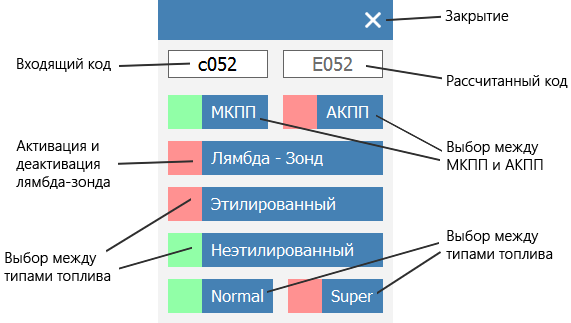
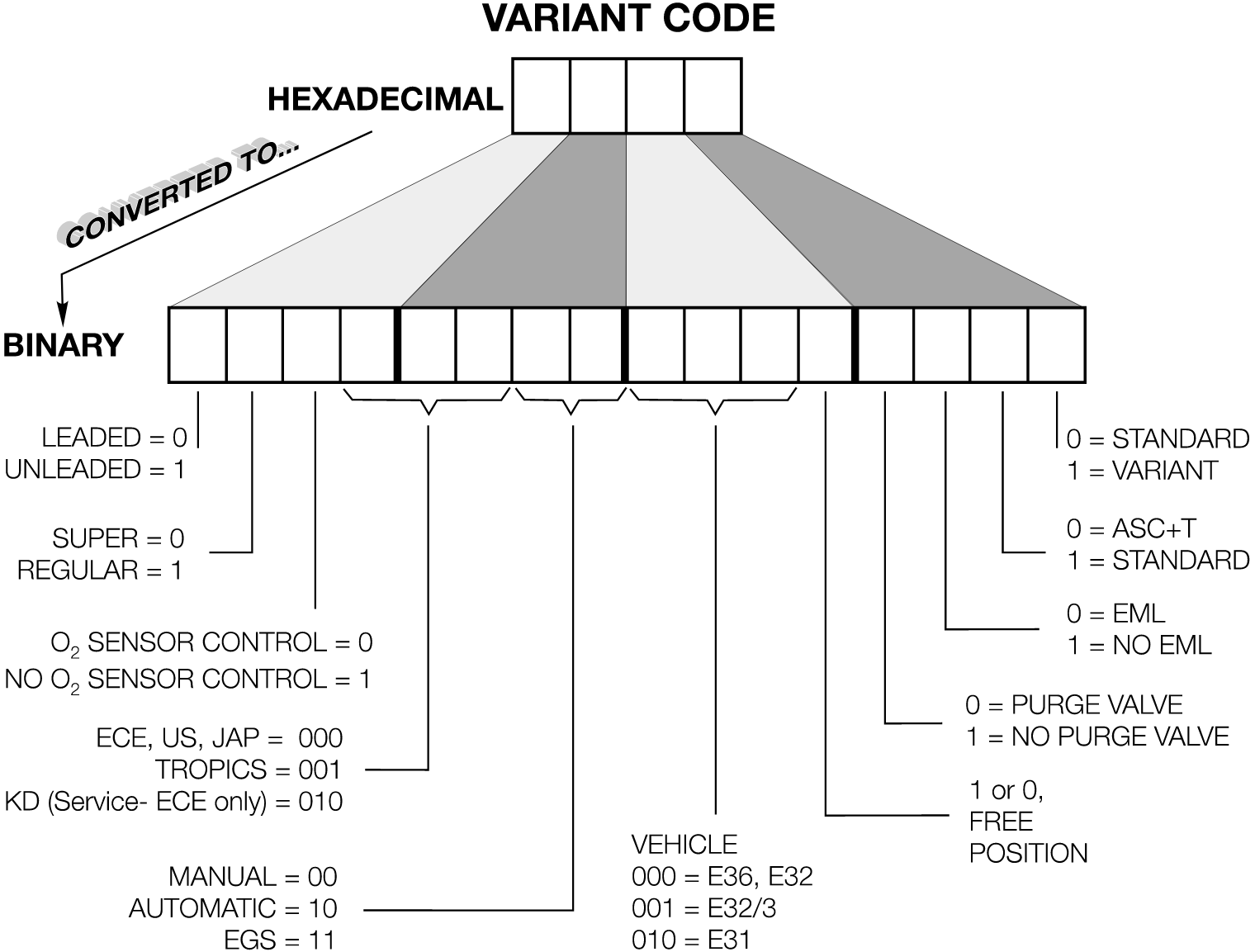
This window allows for extremely simple adjustments to the most essential variant codes for DME 1.x engine control units, without the need to manually recalculate the binary code:
Capabilities of the Programming Section
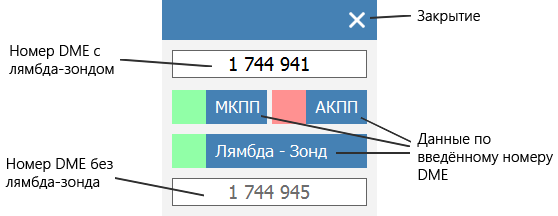
This window allows you to find, by the part number of a lambda-equipped DME, the part number for a non-lambda DME in the ETK database. This non-lambda DME can then be used to program the ECU, effectively converting the engine to run without a catalytic converter. Additionally, it displays the transmission type associated with the entered DME number. It uses the ETK 2004 database. If the program does not find a non-lambda firmware — it simply means it's not present in that ETK.
DISLauncher is, and will remain, unparalleled in its functionality. The software's feature set will be continuously improved. If you have any suggestions or comments regarding DISLauncher's operation, please do not hesitate to contact me.
Price for a 1-PC license: $65