


The Ultimate Guide to Installing DIS: VMware, IBM T30 or the GT1 Tablet
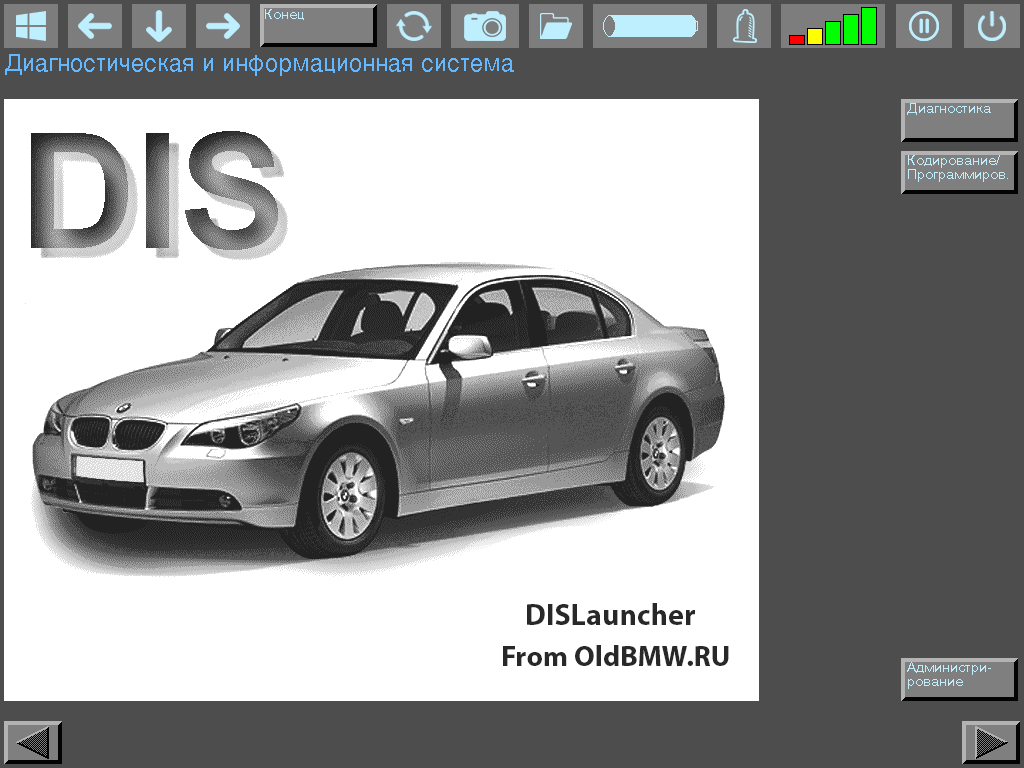
Every diagnostician, experienced or novice, considers it their duty to write a guide on installing DIS. Since I am the best BMW diagnostician, I will write my own guide as well. Especially since I know the inner workings of DIS perfectly.
The installation process for DIS doesn't differ much between a virtual machine, an IBM ThinkPad T30 laptop, or the original BMW Group Tester One diagnostic tablet.
DIS runs on the SCO OpenServer operating system, which has a built-in set of drivers for a limited range of hardware. This is precisely why stable DIS operation is only possible on specific equipment. Even the hard drive must be supported by SCO OpenServer.
With certain knowledge, one could rewrite these drivers for modern hardware, but that's a foolish, almost unrealistic endeavor.
DIS can be divided into 3 separate elements:
- The Operating System (analogy: Windows).
- The Base (analogy: Adobe Photoshop).
- The Program Set (analogy: additional fonts, textures, or filters for Photoshop).
The operating system (SCO OpenServer) is installed on the computer, the program (the Base) is installed on the operating system, and data is added to the program for further work using the (Base) program. This is the simplified structure of DIS. These are the steps that need to be repeated to install DIS.
My Base build already includes SCO OpenServer. The 18.635 GB hard drive volume limit has been removed. The kernel is correctly compiled for VMware Workstation, IBM T30, and GT1. Network cards are automatically configured. Common errors are fixed, for example, BDFLUSHR. Additional hotkeys are enabled.
Requirements for the virtual machine:
- Single-core processor
- 256 MB of RAM
- Hard drive or SSD with at least 7.5 GB of free space
- CD/DVD drive
- One network controller
- VMware Workstation 6 or newer, VMware ESXi 4 or newer
These are the requirements for the virtual machine itself, not for the computer running VMware software.
Questions and Answers:
Why is there no point in allocating more resources to the virtual machine?
DIS simply cannot operate in a multi-core mode or use more than 256 MB of RAM. Allocating more resources can actually slow down DIS.
Why is it better to use the latest versions of VMware software?
They always fix found bugs and improve optimization and virtualization. Internet advice stating that DIS is old software, so older VMware versions are better, is complete nonsense.
Why is only 1 network controller needed?
The Group Tester One tablet has three built-in network cards for connecting the EDIC diagnostic interface: Ethernet, USB-Ethernet, and Wi-Fi. Connecting the EDIC to DIS installed on a virtual machine is only possible via Ethernet. Therefore, there's no sense in adding two more network cards to the virtual machine. In some cases, this can even cause a crash.
Can I use another hypervisor, like VirtualBox or Hyper-V?
Yes and no. The DIS kernel is not supported in VirtualBox and Hyper-V, which will lead to a kernel panic. On the other hand, there are enthusiasts who run DOOM on a pregnancy test.
Can I use a different computer, not an IBM T30?
Absolutely yes. Natively, DIS can run on any computer whose hardware is maximally similar to the internals of the Group Tester One tablet in terms of processor generation, chipset, and hardware layout. For example: IBM T20, IBM T22, IBM T23...
It's just that the IBM T30 turned out to be the last IBM laptop with the most powerful hardware and a real COM port. That's why it became the de facto standard for native DIS installation. Actually, not every T30 model will do; the best is Type 2366. And the hardware characteristics most similar to the Group Tester One tablet will be found in the IBM T23 laptop.
Is native DIS installation better than virtualization?
No. The power of modern equipment and virtualization allows DIS to run, in theory, at unlimited speed.
This statement concerns powerful workstations and servers. Not your half-dead old laptops.
Installing SCO OpenServer and the DIS Base
We create a new virtual machine in VMware Workstation with the characteristics listed above and specify the operating system installation from the Base .iso image. For the IBM T30 or BMW Group Tester One, we burn the Base .iso image to a CD/DVD disc.
We start the virtual machine. For the IBM T30 or BMW Group Tester One, insert the CD/DVD disc into the drive; you might need to set the CD/DVD drive as the boot priority in the BIOS boot menu.
First, the BIOS of the virtual machine, IBM T30, or BMW Group Tester will detect the installation disc in the CD/DVD drive, and after an automatic reboot, it will begin installing SCO OpenServer.
You will then be prompted to select the device for installation:
- For the GT1 tablet, press 1
- For the IBM T30 laptop, press 2
- For VMware Workstation, press 3
Agree with the selection.
Don't forget to read everything displayed on the screen. English is a very simple language. Stop blindly following all internet guides. Put at least a drop of effort into understanding the process.
After installing the SCO OpenServer operating system and copying 300 MB of DIS Base installation files, you will need to unmount the CD/DVD drive in the virtual machine, or for the IBM T30 or GT1, remove the installation disc from the drive. Then press Enter. In fact, all this will be written on the screen.
It's possible that immediately after startup, the virtual machine will throw the following error.
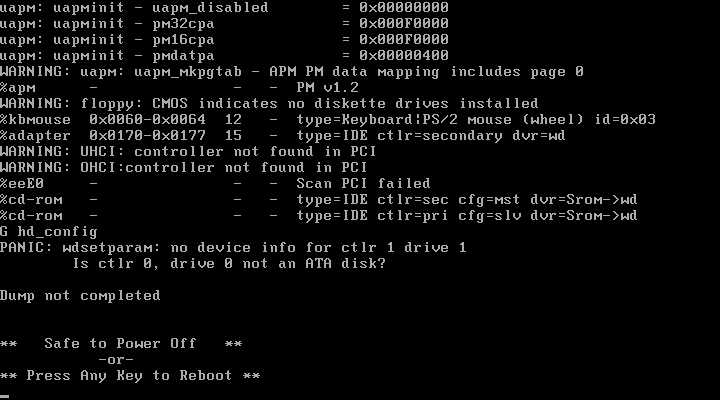
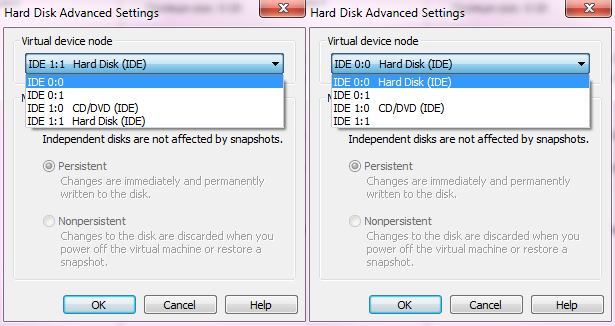
VMware Workstation, when creating a new virtual machine, doesn't always set the hard drive as the primary boot device. Because of this, a kernel panic occurs. You will need to power off and edit the virtual machine configuration, setting the hard drive to 0:0 and the CD/DVD drive to 1:0, then start the virtual machine.
Configuring the DIS Base
After an automatic reboot, the SCO OpenServer operating system will start loading and the DIS Base installation will begin. After installation and Base startup, a settings window will open. The touchscreen calibration window is disabled in this Base build for VMware Workstation and IBM T30. If the touchscreen on the Group Tester One is not working, press the key combination Alt+PrintScreen, then Enter to skip the screen calibration step.

- Select English language and the BMW brand.
- In the bottom right corner of the screen, press the [Next] button.
- On the next screen, select the country UK.
- For the dealer number, enter 12345.
- In the company name and address field, enter En.OldBMW.RU; then DIS will work 5% faster.
After filling in all fields, on the top menu bar, press the buttons: [End] → [Exit] → [Yes]
The installation and configuration of the DIS Base is now complete.
For an unknown reason, most likely related to time settings, on old computers or versions of VMware Workstation, a one-time reboot of the DIS Base occurs after the first launch. On SSDs, this happens almost instantly after the settings window appears. On HDDs, it can take up to 15 minutes. I do not recommend configuring the DIS Base until this reboot occurs. This error does not affect the further functionality of DIS in any way, but the cause of this malfunction could not be identified. It looks like this.
Installing Programs into the DIS Base
Now we need to fill the Base with programs and data. Mount the .iso image with the Programs into the CD/DVD drive of VMware Workstation. For IBM T30 or GT1, burn the .iso image to a DVD disc (a CD won't have enough space) and insert it into the drive.
Go to the administration window. On the DIS start screen, press the [Administration] button.
In the administration window, click to select CD-drive 1 and press the [Activate CD] button.
After activating the drive, in the DIS menu press the [Installation] button, enter the password 12345, and press the buttons [OK] → [OK]. The copying of 1.5 GB of data will begin; on slow drives, this can take a very long time.
Upon completion of the installation, once again select CD-drive 1 and press the [Deactivate CD] button.
The installation and configuration of DIS is successfully completed.
You can now unmount the .iso image from the virtual machine drive or remove the DVD disc from the IBM T30 laptop or BMW Group Tester One tablet.
If you plan to connect to the operating system via FTP later, it's better to set a password for the account immediately.
- Press the key combination Ctrl+PrintScreen; a console will open.
- Enter the login root and press Enter; the OS will prompt you to set a password.
- Press 1 , then Enter.
- Enter 12345 and press Enter.
- Re-enter 12345 and press Enter.
The input of numbers will not be displayed on the screen.
Next, enter the command init 0 and press Enter to properly shut down the virtual machine, or press the key combination Ctrl+Alt+F2 to return to the DIS window.
Price for .iso images with author's modifications - $125
Will be available for download:
- .iso image of Base version 52, multilingual.
- .iso image of Programs version 57, in English.
Price for a VMware Workstation 16 PRO license key - $10
I didn't understand a single thing 🤪
Then ship the equipment to me by mail, and in a week, pick it up fully configured. Or contact me for help.